Exchange & API
Supported Exchanges
CryptonX supports trading on Binance. Users can integrate their Binance account via API to manage their crypto portfolios and automate trading strategies directly through the CryptonX platform.
Creating an API Key and Establishing the Connection
How to Create a Wallet:
- Log into your CryptonX account.
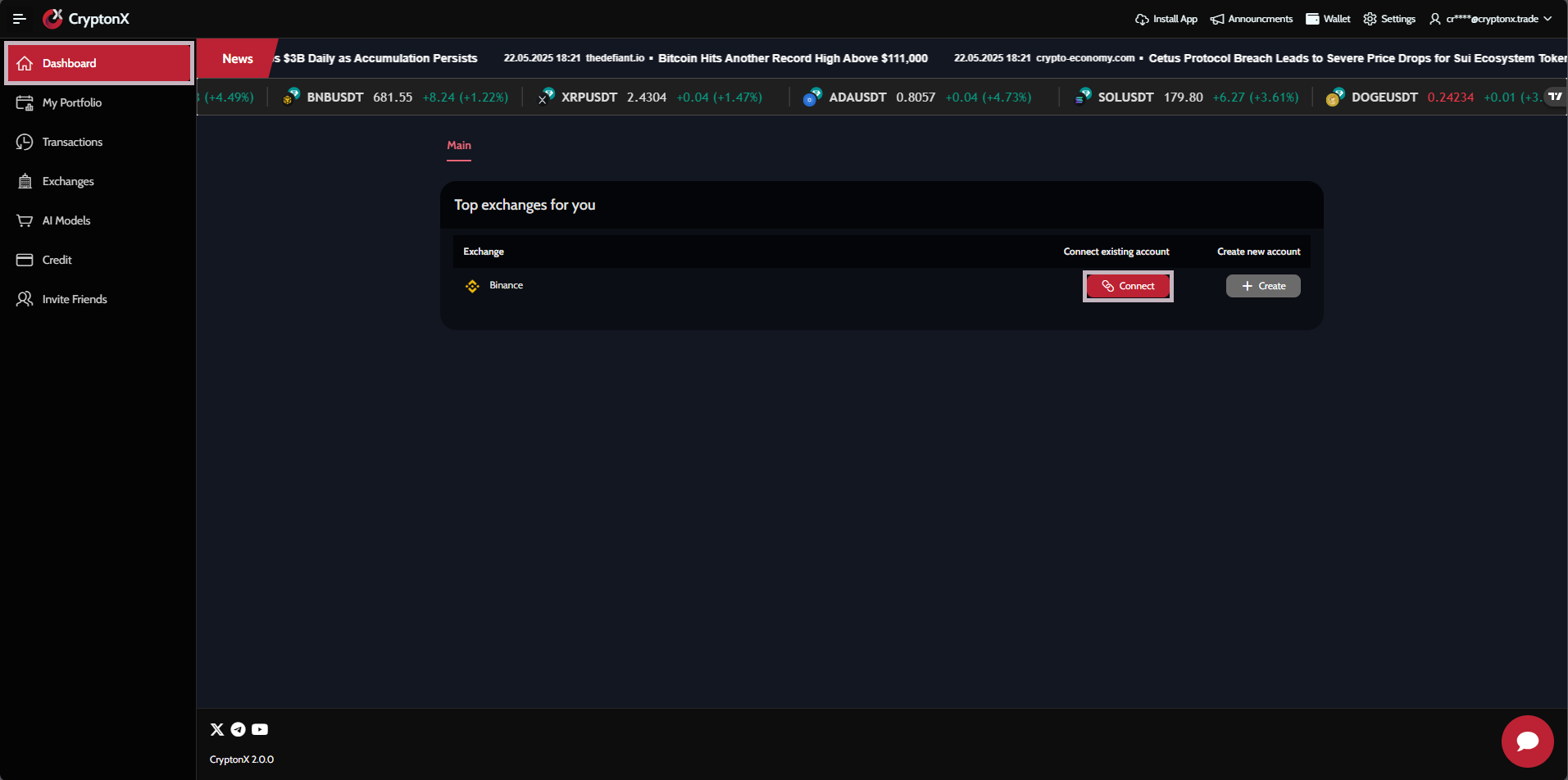
- Navigate to the Dashboard page.
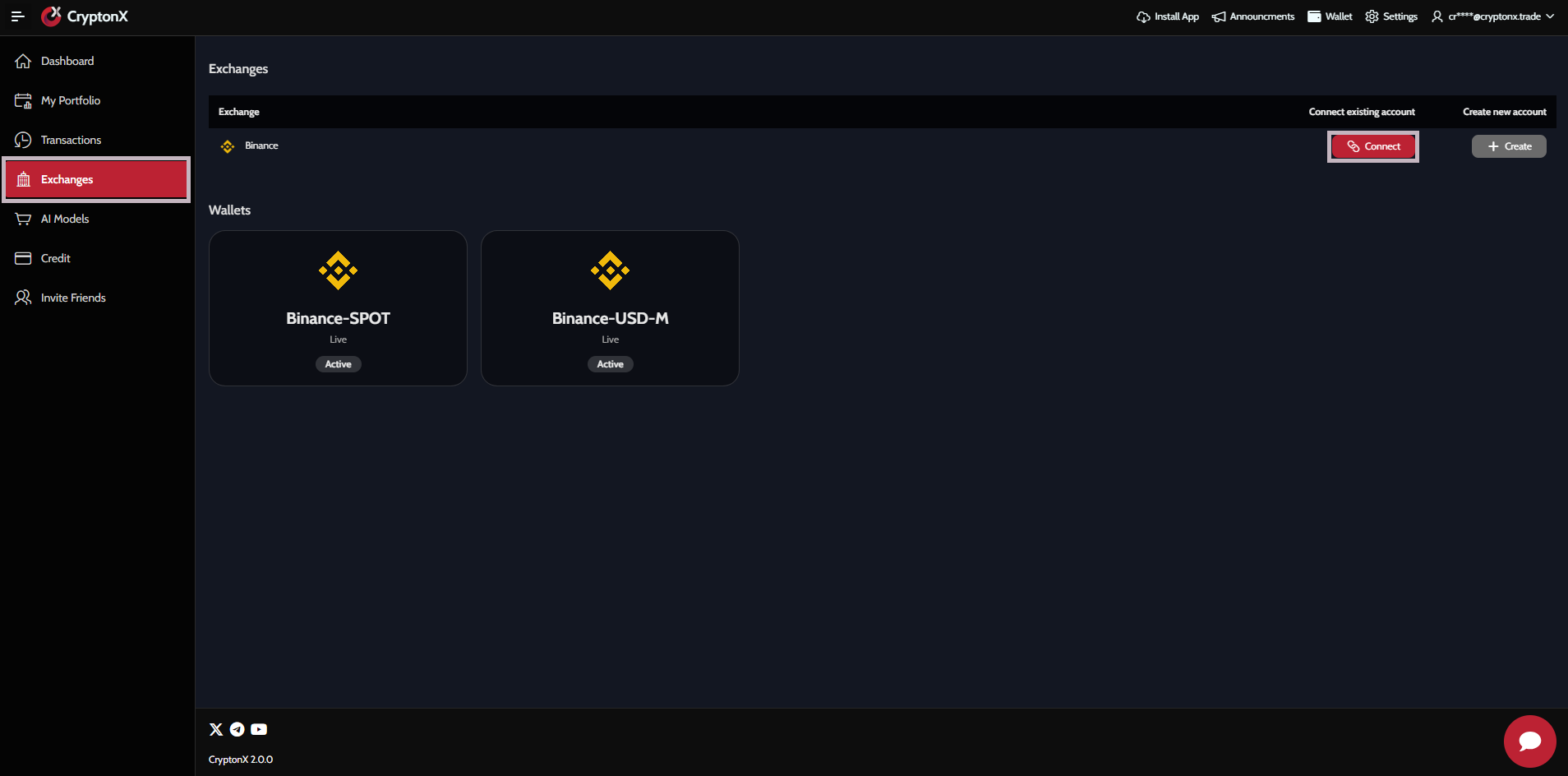
- Click the Connect Exchange button, or select Exchange in the sidebar.
- You will be redirected to the exchange connection page.
- On that page, find the wallet you wish to
connect and click the
Connect button.
- Make sure your IP addresses are whitelisted in your Binance API settings.
-
In the new tab:
- Paste your Binance API Key and API Secret.
- Copy your public IP address, then in your Binance account enable IP access restrictions and paste it.
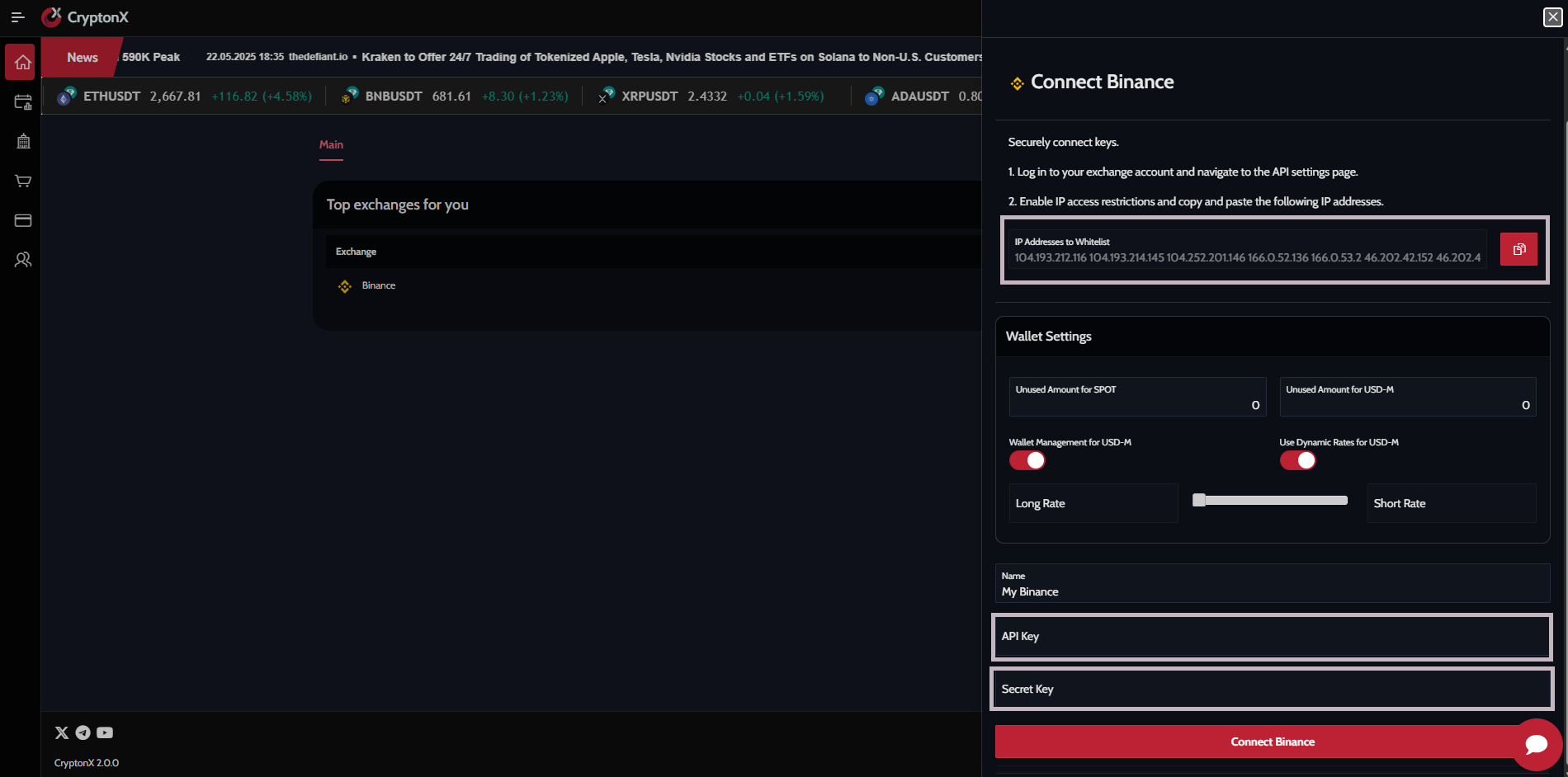
- Once all fields are filled and IP restrictions set, click Connect Binance to link your account.
API Security and Permissions
- Grant only trading permission.
- Disable withdrawal permissions.
- Do not share your API key with anyone.
Transaction and Position Management
Real-Time Transaction Monitoring
- Track open transactions in the Open Positions section on the Homepage.
- Review your transaction history in the
Position History section on
the Homepage.
- This list reflects the number of past transactions set in your personal settings.
- You can update your display settings at any time.
- In the Movements tab, view all transaction details with filter options for deeper analysis.
Editing and Closing Open Positions
- You can change position size or close trades early via Manual Tracking.
- All your trades appear in the Movements tab.
- Next to each open position, use:
- Manual Tracking: Control the position directly on Binance and pause automated strategy actions. Note: Once manual, you cannot reconnect the position to the strategy.
- Close Position: Immediately close the trade on both Binance and CryptonX at market price. Closed trades cannot be undone.
Tracking Profit and Loss
- In the Movements tab, view your full transaction history.
- Use filters for date range, asset, and AI agent to analyze performance.
- At the bottom of the page, see your total profit/loss (PNL) amount.
How to Create an API Key on Binance
To create an API key on Binance, follow these steps:
- Click on the profile icon in the top right
corner of Binance and go to the "Account"
section.
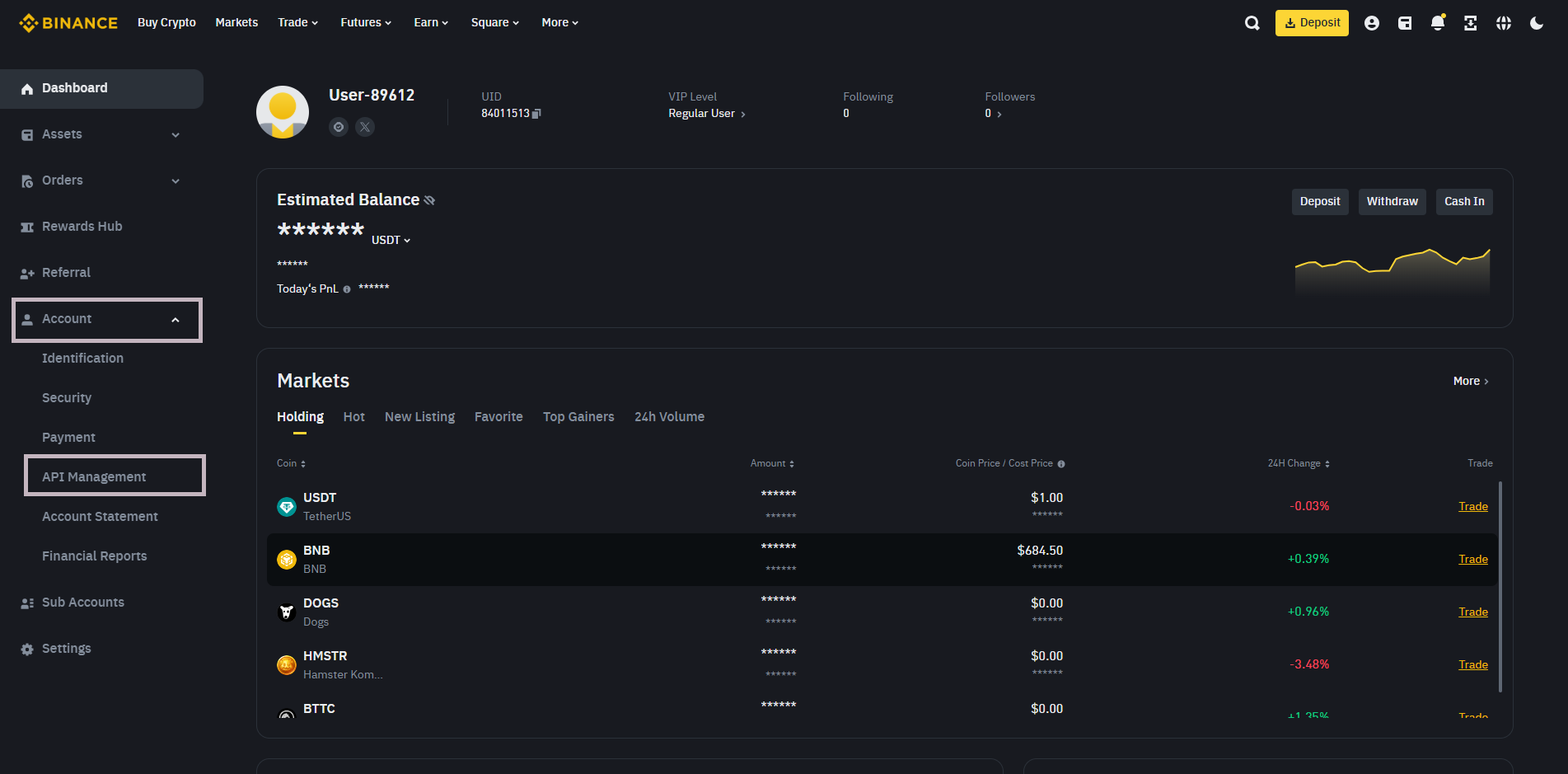
- On the opened page, click on the "API Management" tab. Then, click the "Create API" button in the top right corner.
- Select your preferred API Key type.
- System-generated API keys use HMAC symmetric encryption. You will be provided with an API Key and Secret Key.
- If you create your own API keys, they will use Ed25519 or RSA asymmetric encryption. You will receive an API Key, but you must generate your own public and private key pair using third-party software and share the public key with Binance.
- For more details on generating your own API keys, refer to the Binance guide "How to Generate an Ed25519 Key Pair for Sending API Requests to Binance."
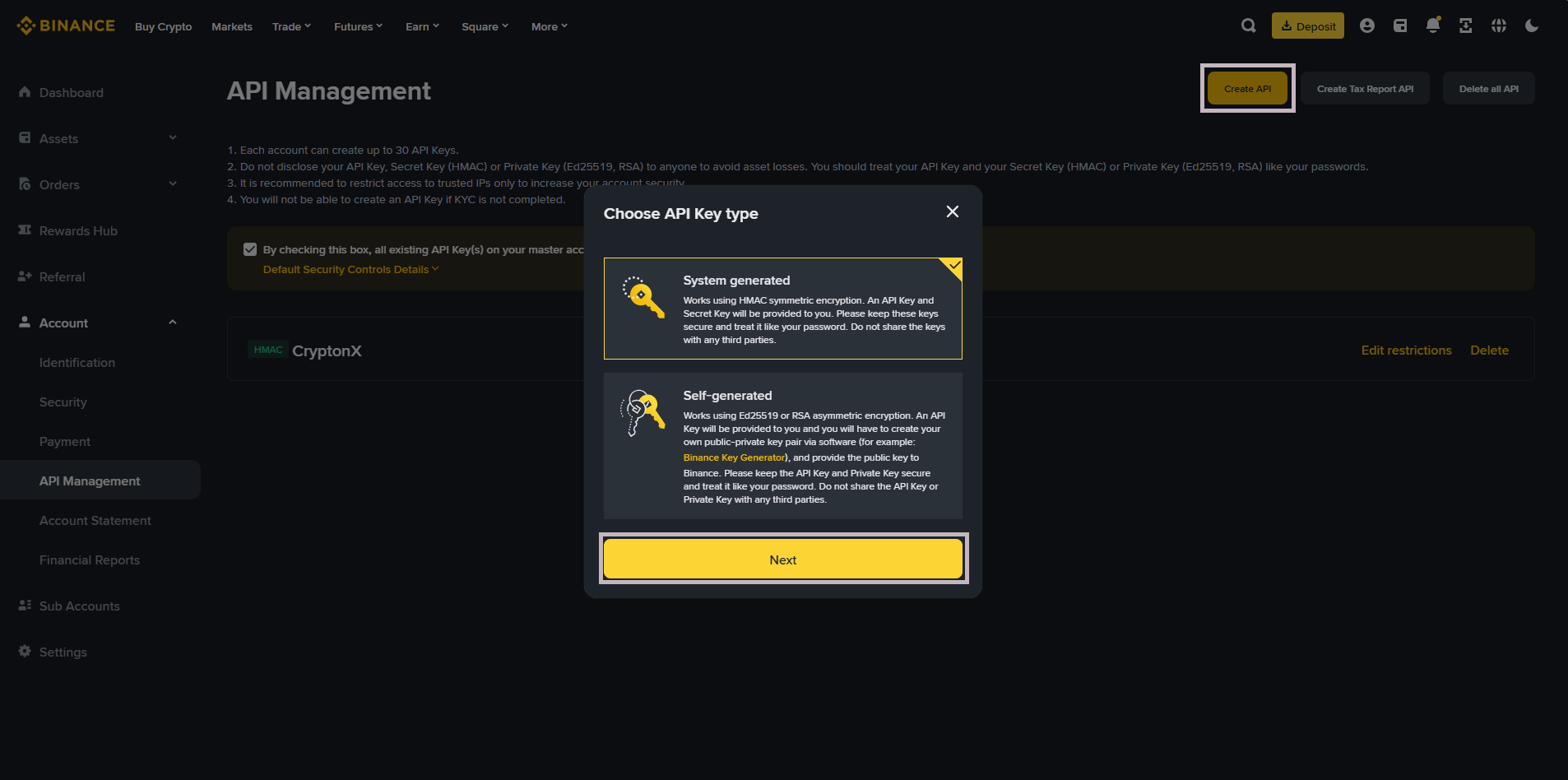
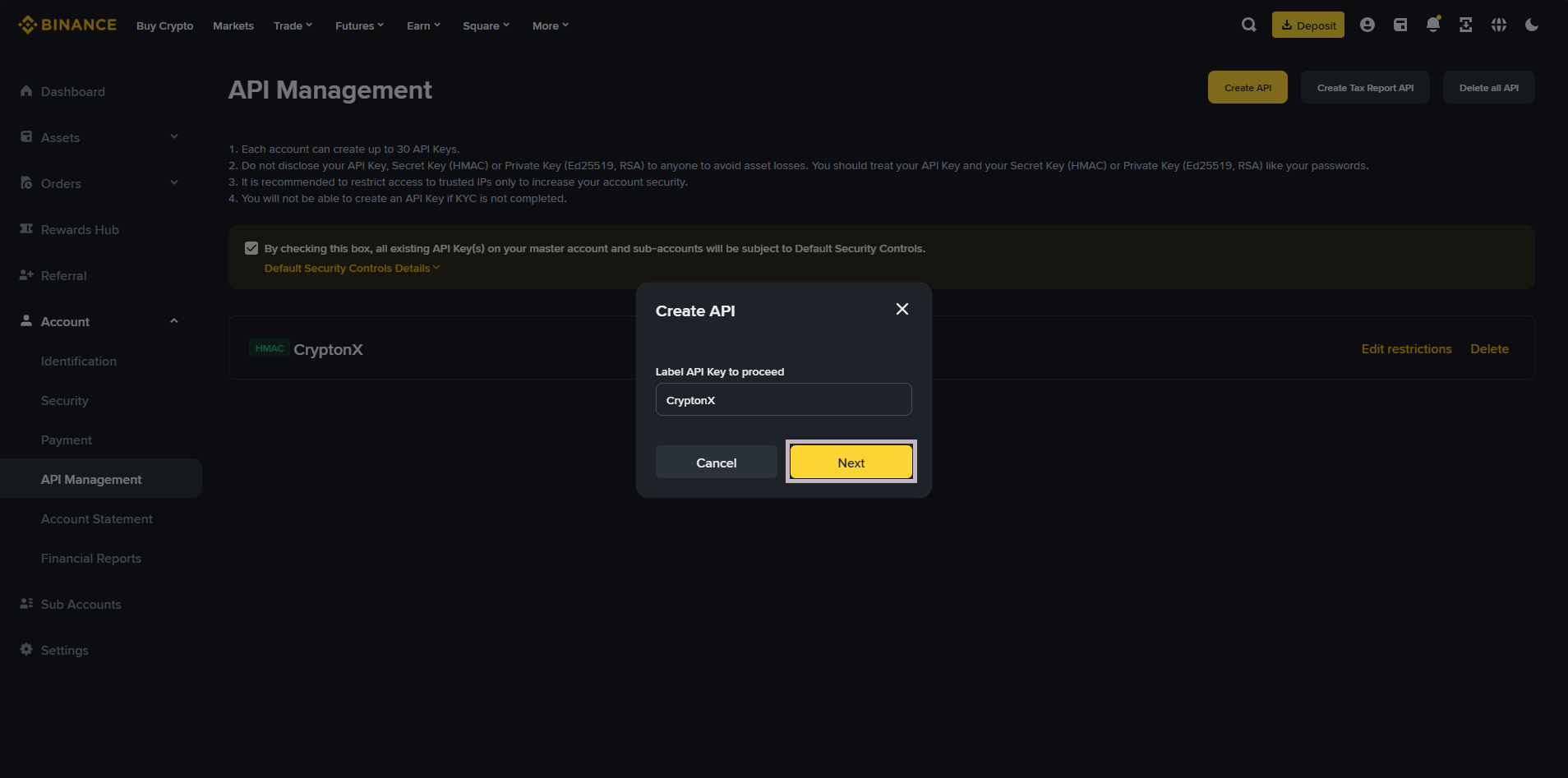
- Enter a label/name for your API Key.
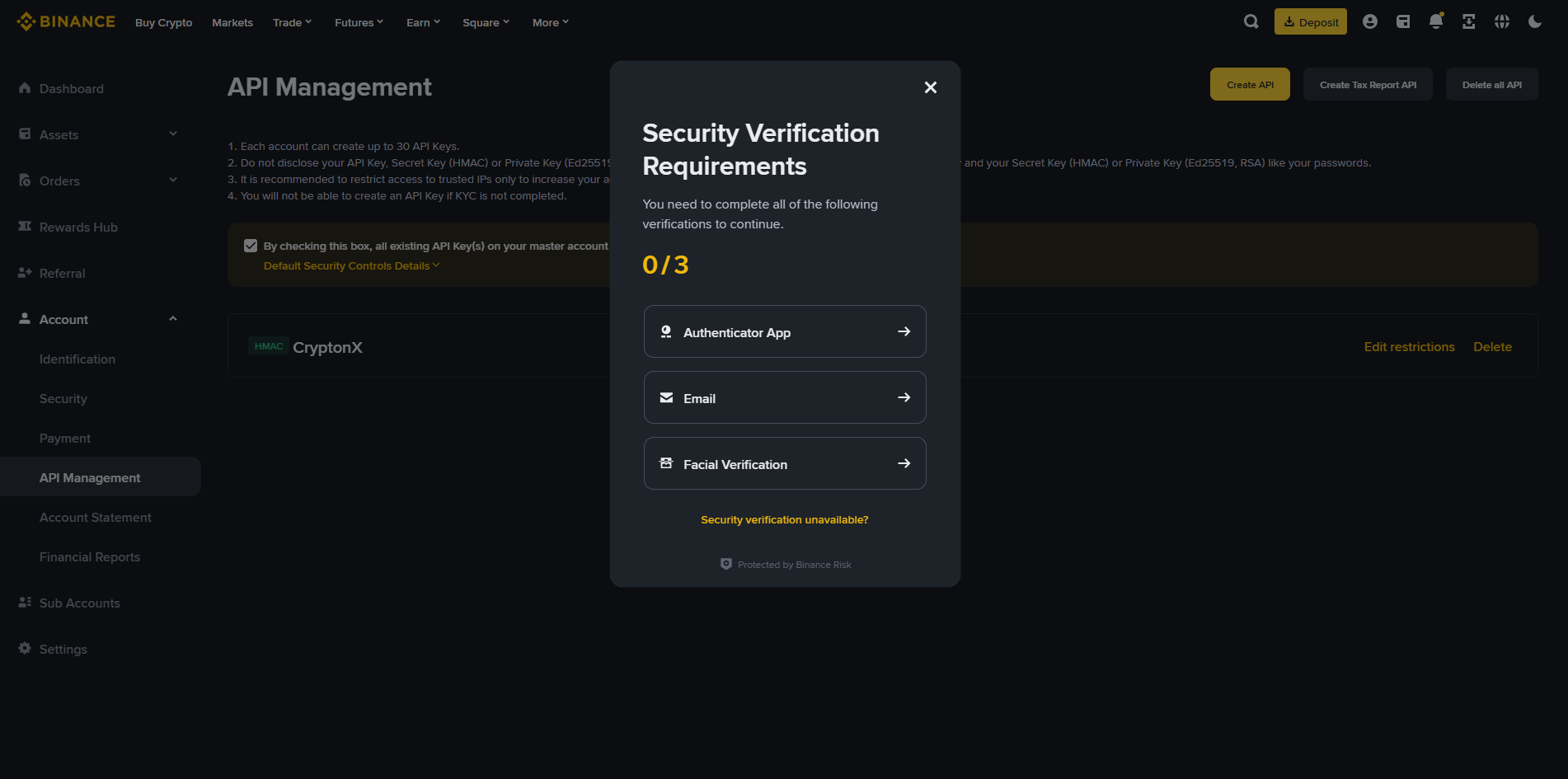
- Verify your request using 2FA devices or master
passwords.
- Copy the Secret Key and API Key, then paste them
into the API Key and Secret Key fields in the
CryptonX application.
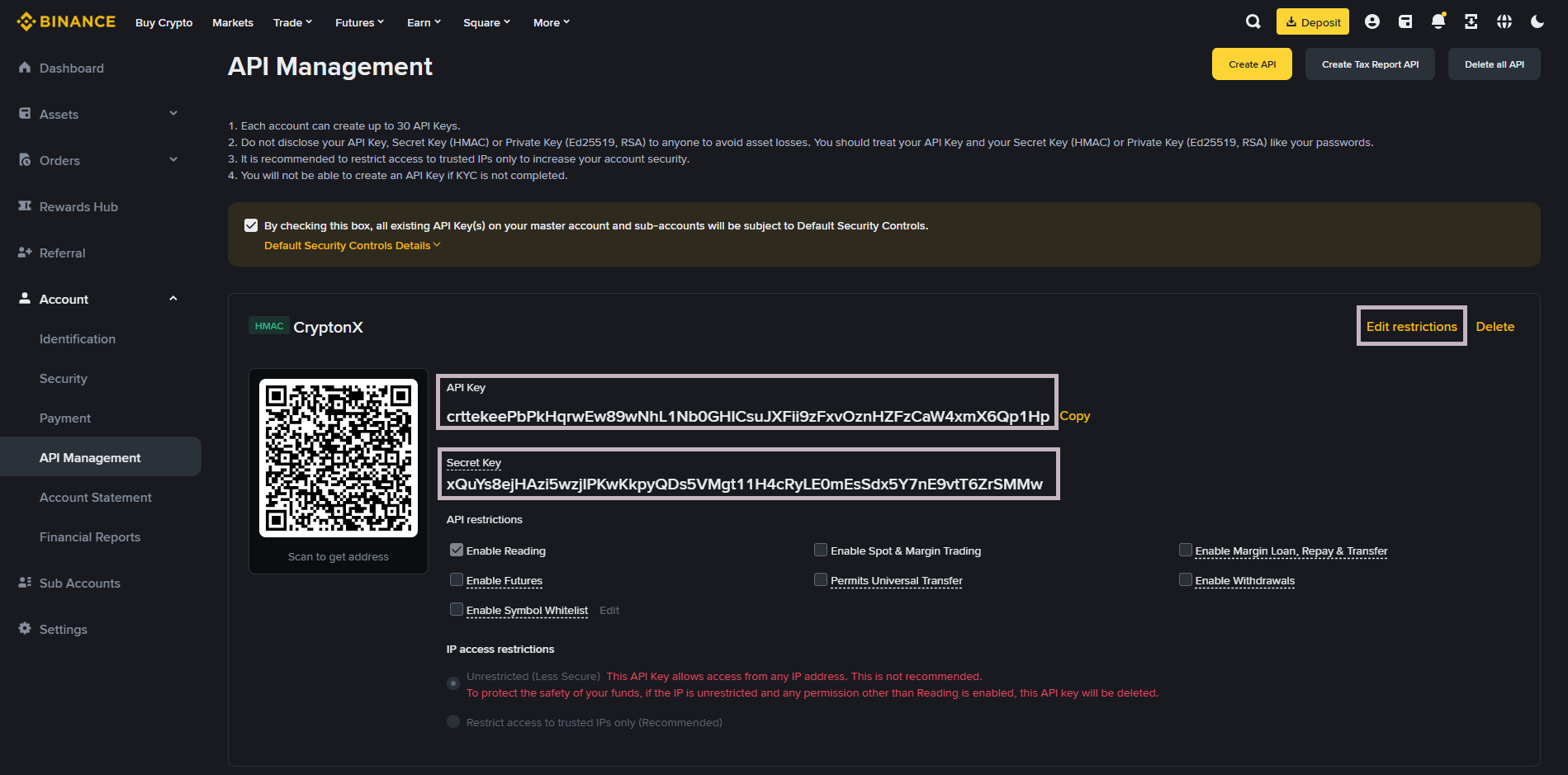
- In the IP access restrictions section at the
bottom of the page, check the box
"Restrict access to trusted IPs only (Recommended)".
- After checking the box, copy the “IP Addresses to Whitelist” from CryptonX and paste them into this field.
- Click "Confirm".
- In the API restrictions section, check the boxes
for "Enable Futures" and
"Enable Spot & Margin Trading".
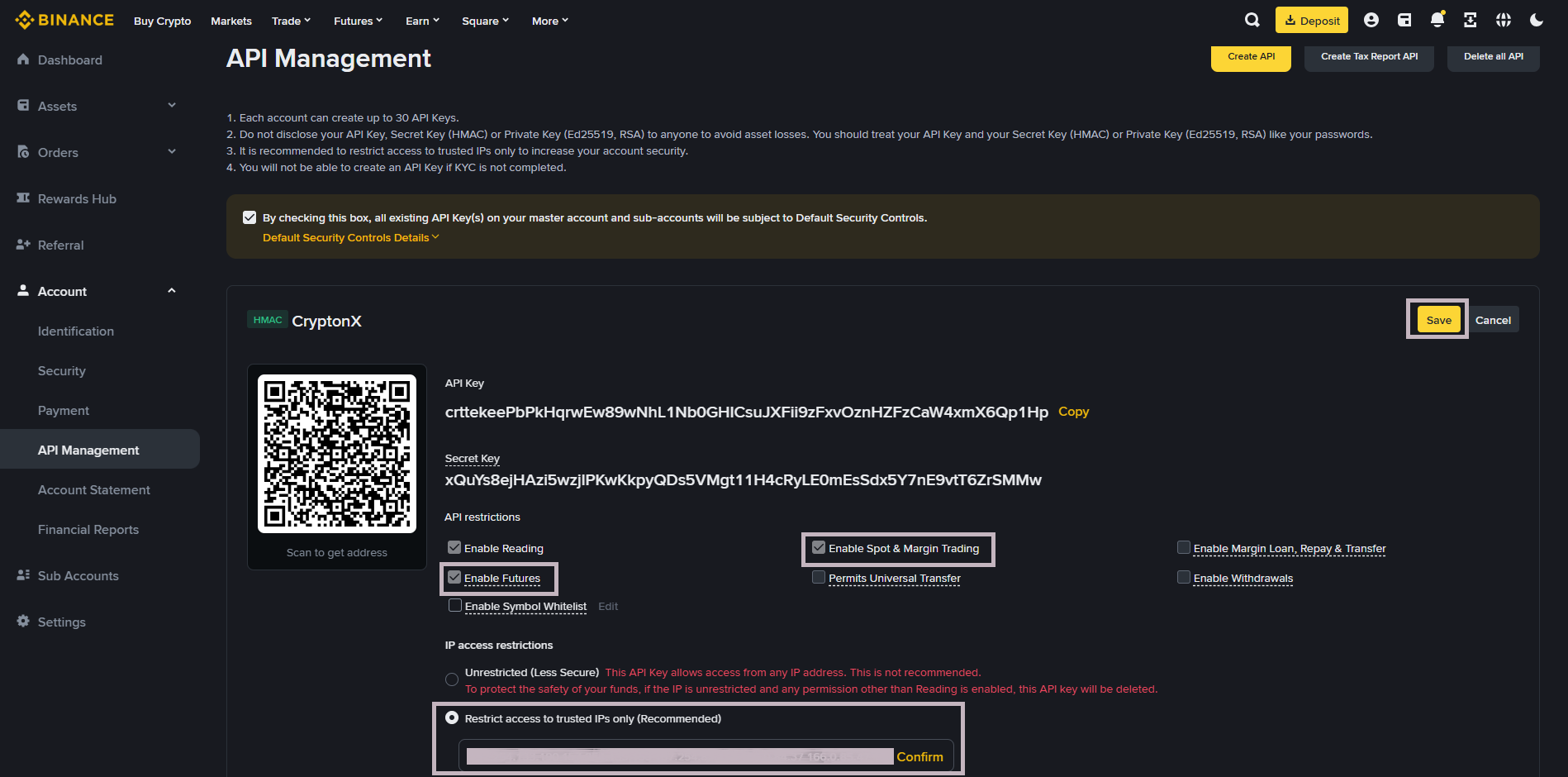
- Save the API and click the "Connect" button in the CryptonX application.